9.5. Bluetooth
Note
H9 software version 1.2+ is required to enable Bluetooth functionality.
The H9 can pair and connect to your Mac, iPad, and iOS device via Bluetooth. This allows you to connect to Eventide Control (Mac/iPad only) or send MIDI messages via a DAW or 3rd party MIDI control app.
Press and hold the Select and Perform buttons to enter the H9’s System Menu, then locate the Bluetooth menu to enable Bluetooth and pair/connect your H9.
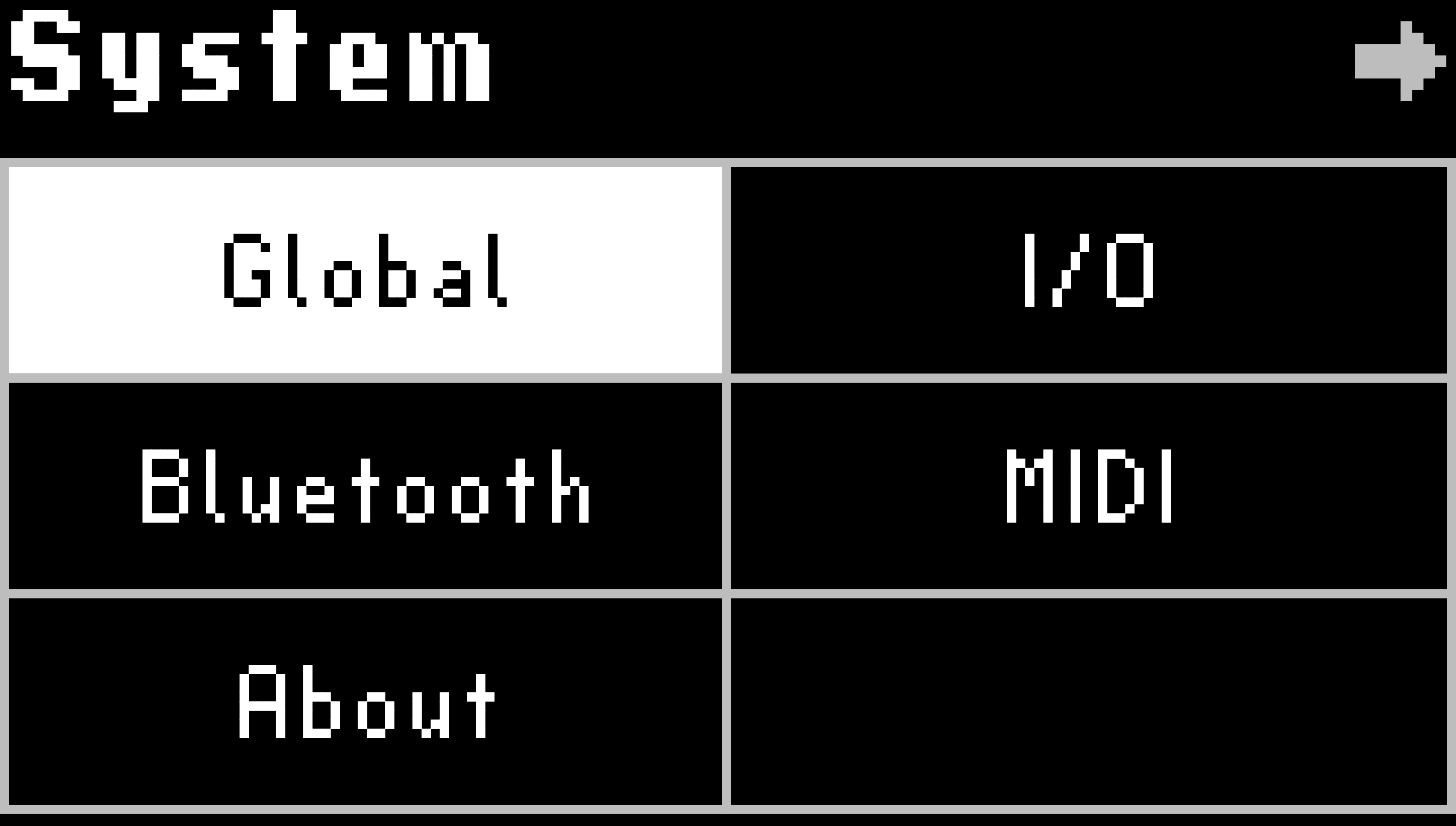
Fig. 9.12 Press and hold the Select and Perform buttons to enter the H9’s System Menu.
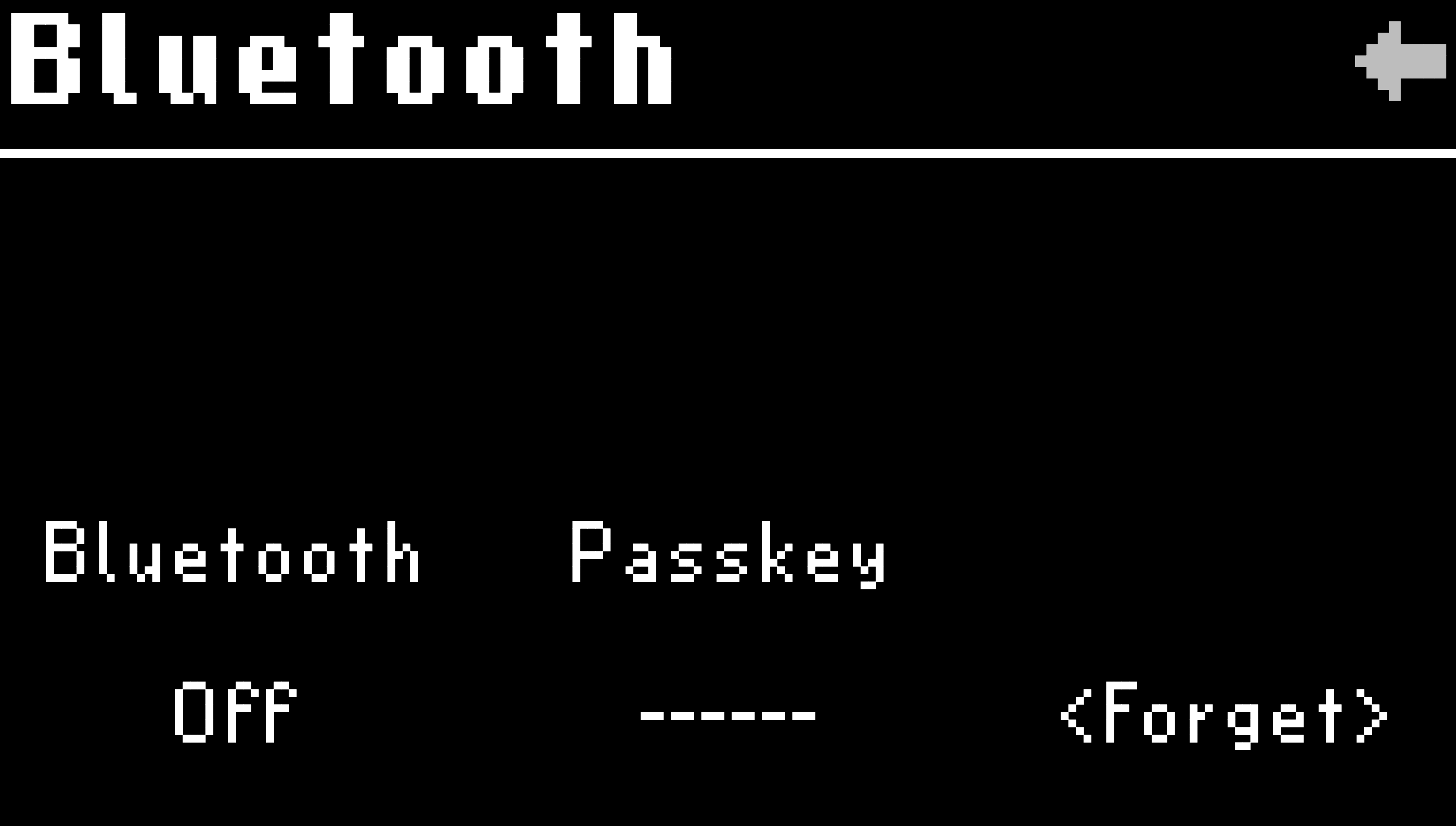
Fig. 9.13 Enter the Bluetooth menu to enable Bluetooth on your H9.
- Bluetooth On/Off:
Turn Quick Knob 1 to turn the H9’s Bluetooth advertising on/off. This allows you to pair and connect with Bluetooth host devices such as a Mac computer or iOS device. The Bluetooth LED will flash blue when it is ready to pair, and illuminate blue when connected.
- Passkey:
Displays a pairing Passkey while you are pairing with a new host device.
- Forget:
Push or turn Quick Knob 3 to forget all paired devices.
Tip
Once you have forgotten a host device on the H9, you must also forget the H9 Bluetooth device from the Host Device’s Bluetooth settings. You must then follow the instructions to pair the device again.
Eventide Control connection tips:
Your H9 will show up as two devices in Eventide Control depending on the connection method: USB or Bluetooth. This will be indicated by the connection icon below the device’s image.
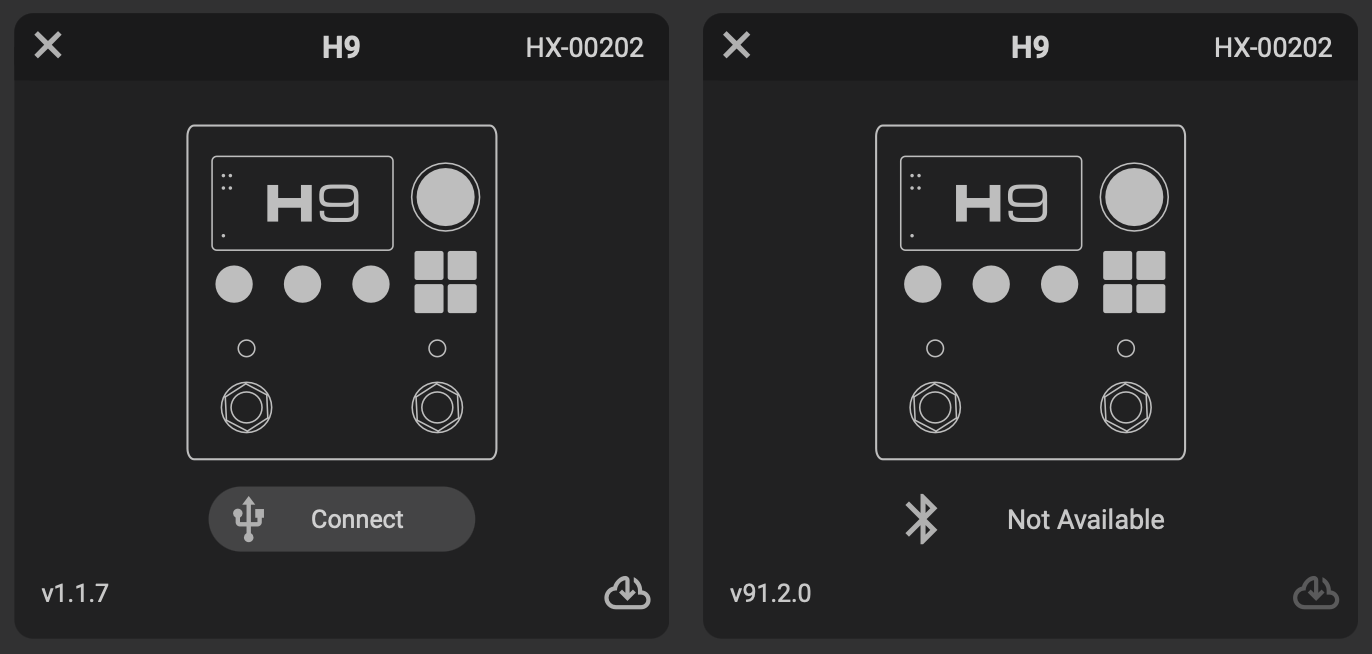
Fig. 9.14 The USB Device can be seen on the left, while the Bluetooth device can be seen on the right.
You cannot update your H9 via Bluetooth; you must use a USB connection to update. Click the cloud icon in the bottom right corner of the USB device to update.
Do not connect your H9 to multiple devices running Eventide Control via Bluetooth and USB simultaneously.
9.5.1. macOS connection
Turn Quick Knob 1 to turn the H9’s Bluetooth on.
The Bluetooth LED will flash blue to show it is ready to pair.
Open Eventide Control, and click the Bluetooth pairing button. This will open the macOS Bluetooth Configuration menu.

Fig. 9.15 Click the Bluetooth icon to pair your H9 with your Mac.
In the Bluetooth Configuration menu, locate your H9 and click the “Connect” button.
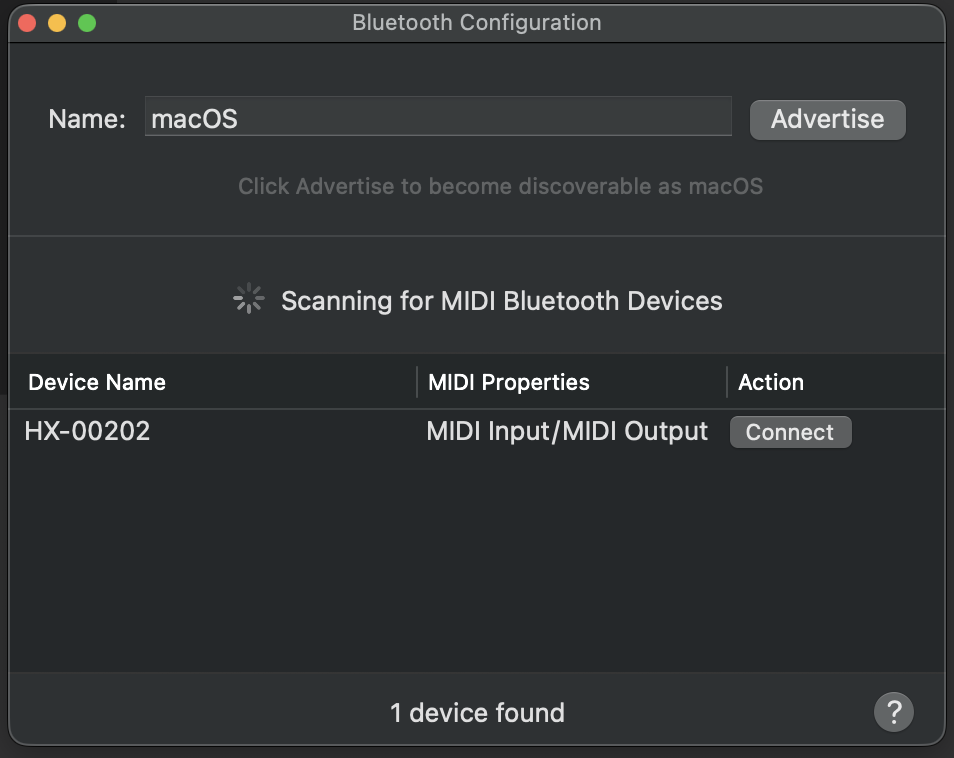
Fig. 9.16 Click the “Connect” button.
You will now be prompted to enter a 6-digit code that is displayed on the H9’s Bluetooth menu under the Passkey. Enter the Passkey on your Mac and click the “Connect” button. Your H9 should pair to your computer successfully. The Bluetooth LED on the H9 will illuminate blue to indicate it is connected to a host.
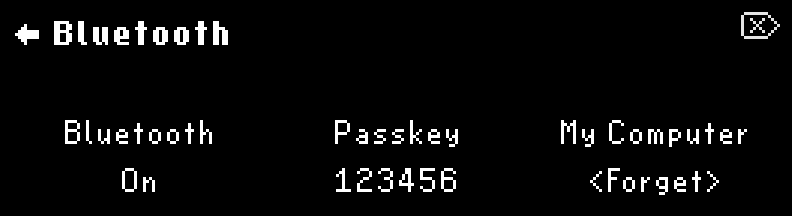
Fig. 9.17 The Passkey will be displayed on your H9.
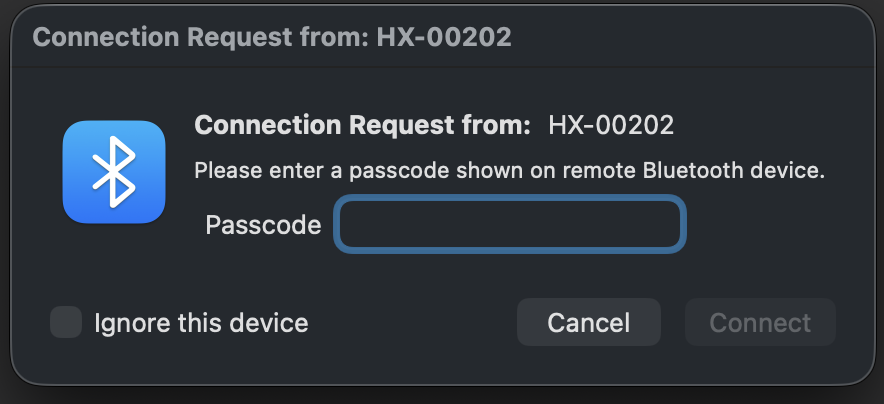
Fig. 9.18 Enter the 6-digit code to pair with your device.
In Eventide Control, click “Add Device” followed by “Select Port”.
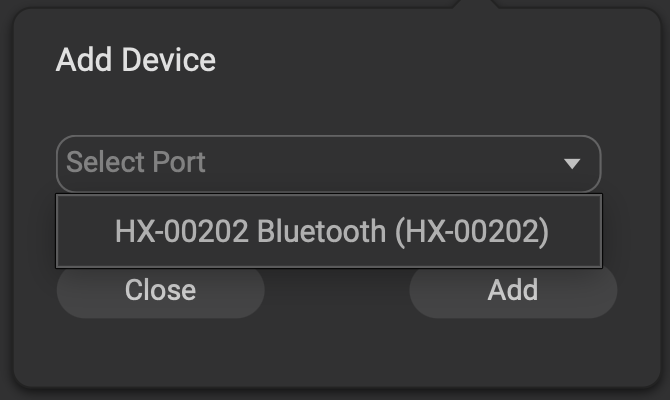
Fig. 9.19 Select the H9 Bluetooth Device to add it.
Select the H9 Bluetooth device, and click “Add”.
You can now connect your H9 to Eventide Control via Bluetooth.
Additionally, your H9 Bluetooth device will now be available as a MIDI device in your DAW.
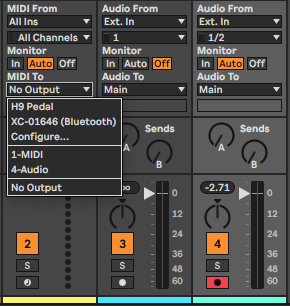
Fig. 9.20 The H9 Bluetooth device is now available in Ableton Live.
9.5.1.1. macOS pairing tips
If you turn your Mac’s Bluetooth off, or disconnect the H9 from the Bluetooth Configuration menu, this will break the Bluetooth connection and turn the H9’s Bluetooth off. Turn it on again in the H9’s Bluetooth menu to reconnect.
If you choose to “Forget” the Mac your H9 is paired with, you must also remove the H9 Bluetooth device from the Mac Bluetooth settings before your H9 can reconnect. To do this, go to the Mac System Settings > Bluetooth menu, locate the H9 Bluetooth device, right-click it and select “Forget”. After this, repeat the instructions to pair using Eventide Control.
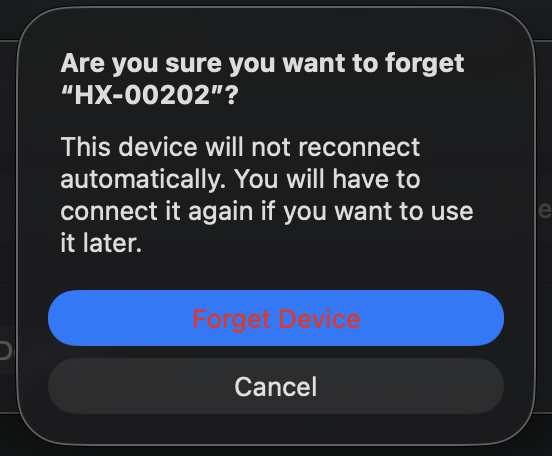
Fig. 9.21 Remove the H9 from your Mac’s Bluetooth settings before pairing again.
Depending on your OS version, you may or may not need to manually reconnect your H9 for it to be available in Eventide Control. This will be apparent if your device shows up as “Not Available”. If you need to connect again, simply click the Bluetooth button in Eventide Control and press “Connect” on the device. This should make the device available once connected.
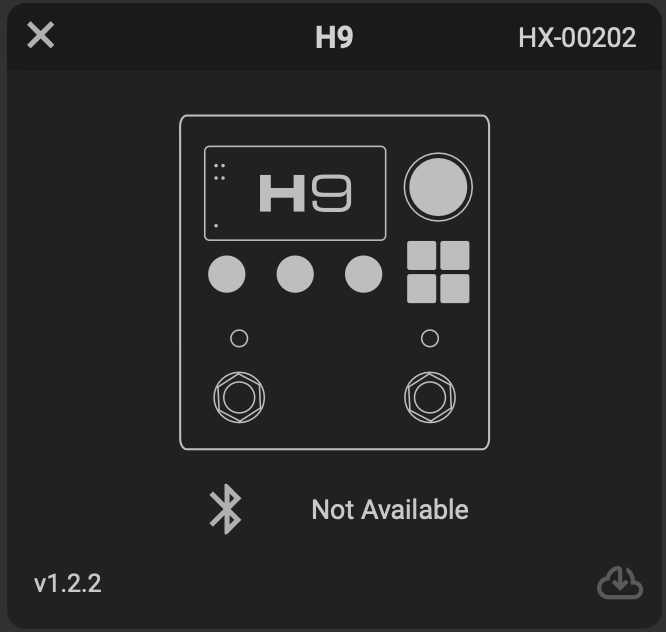
Fig. 9.22 This device is not available and needs to be reconnected.
Fig. 9.23 Click “Connect” to make the device available in Eventide Control.
9.5.2. iPad Connection
Open Eventide Control and click the Bluetooth icon in the top right corner to begin pairing your H9.
Fig. 9.24 Click the Bluetooth icon to pair your H9 with your iPad.
Select your H9 from the iPad’s Bluetooth MIDI Devices menu.
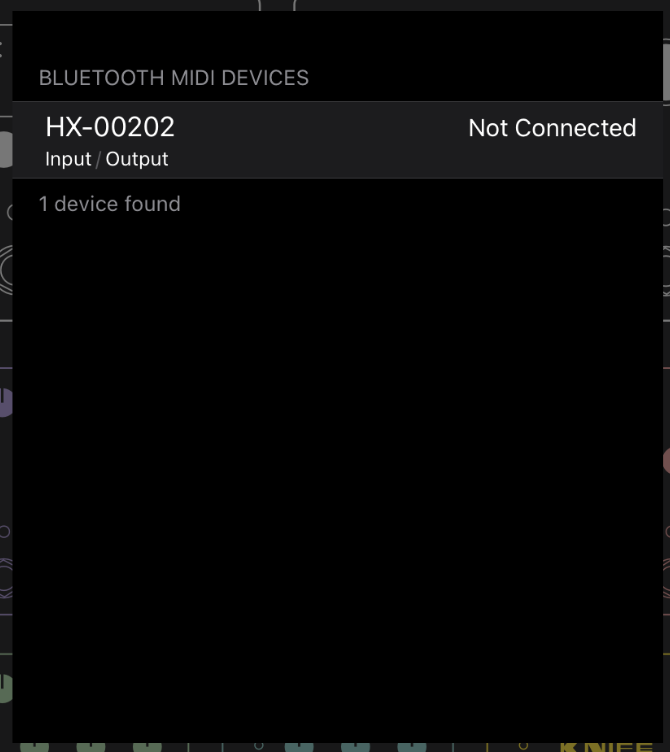
Fig. 9.25 Select your H9 to begin the pairing process.
You will be prompted to enter a 6-digit code that is displayed on the H9’s Bluetooth menu under the Passkey.
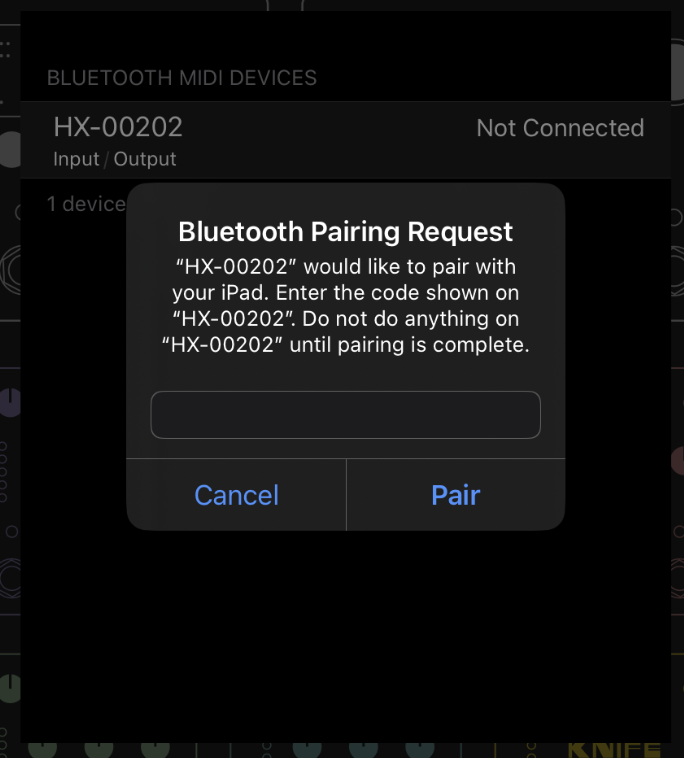
Fig. 9.26 Enter the Passkey displayed on the H9.
Enter the Passkey on your iOS device and click the “Pair” button.
In Eventide Control, click “Add Device” followed by “Select Port”.
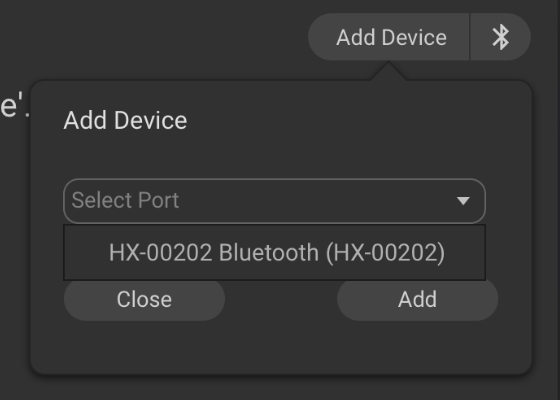
Fig. 9.27 Select the H9 Bluetooth Device to add it.
Select the H9 Bluetooth device, and click “Add”.
Your H9 Bluetooth device will now be connected to your iPad. The Bluetooth LED on the H9 will illuminate blue to indicate it is connected to a host.
You can now control your H9 using your iPad with Eventide Control.
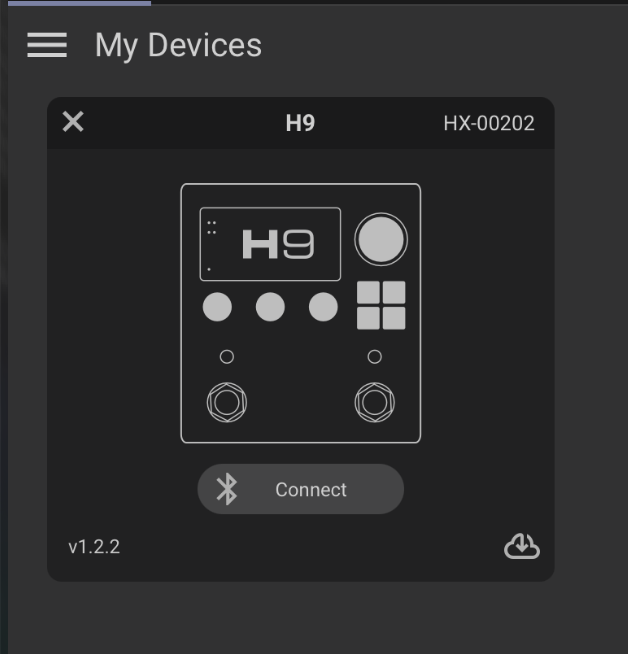
Fig. 9.28 Click “Connect” to connect your H9 with Eventide Control.
Additionally, the H9 Bluetooth device will now be available as a MIDI device in your DAW or MIDI control app.
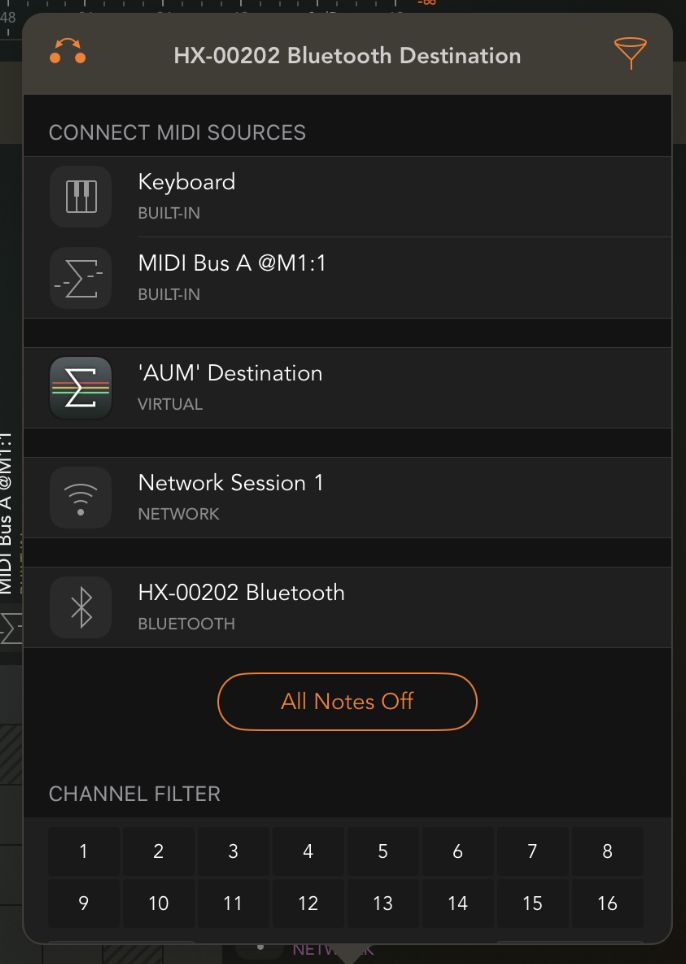
Fig. 9.29 The H9 Bluetooth device is now available in the DAW.
9.5.2.1. iPad pairing tips
If you turn your iPad’s Bluetooth off, this will break the Bluetooth connection and turn the H9’s Bluetooth off. Turn it on again in the H9’s Bluetooth menu to reconnect.
If you choose to “Forget” the iPad your H9 is paired with, you must also remove the H9 Bluetooth device from the iPad’s Bluetooth settings before your H9 can reconnect. To do this, go to the Settings > Bluetooth, locate the H9 Bluetooth device, click the “i” icon, and select “Forget This Device”. After this, repeat the instructions to pair your H9 with the iPad using Eventide Control.
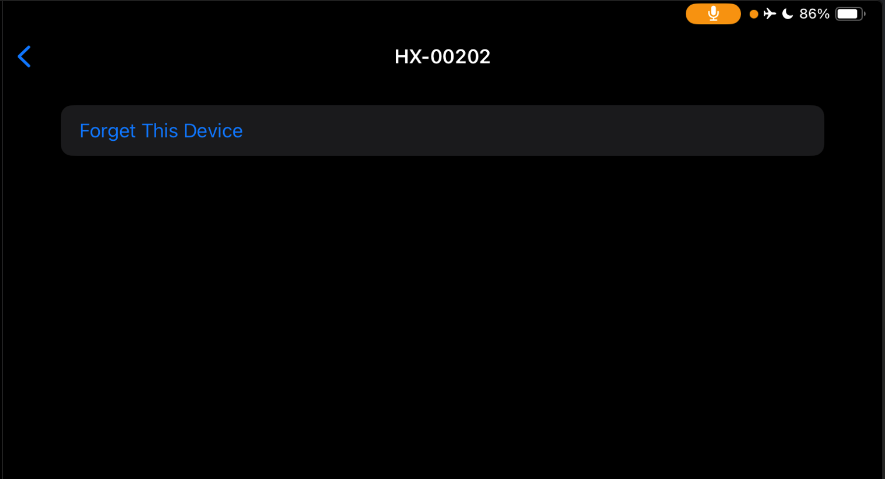
Fig. 9.30 “Forget” the H9 on your iPad before pairing again.
You cannot update your H9 using an iPad; you must use a computer with a USB connection to update.
You cannot connect your H9 to your iPad via USB and Bluetooth simultaneously.
9.5.3. iOS Connection
To pair your H9 with an iOS device, you must download a 3rd party Bluetooth MIDI pairing app. We recommend Korg - BLE MIDI.
Open the Bluetooth MIDI pairing app; your H9 should be available as a device to connect to.
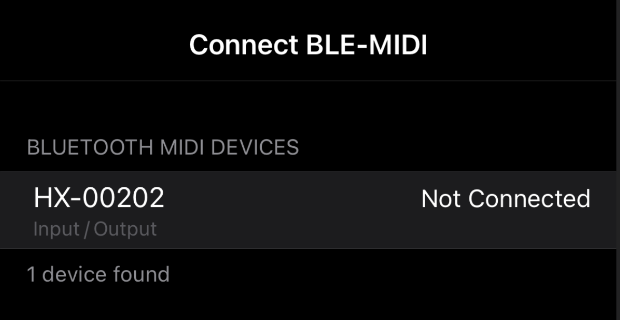
Fig. 9.31 Select the H9 to pair with your iOS device.
Select the H9 and you will be prompted to enter a 6-digit code that is displayed on the H9’s Bluetooth menu under the Passkey.
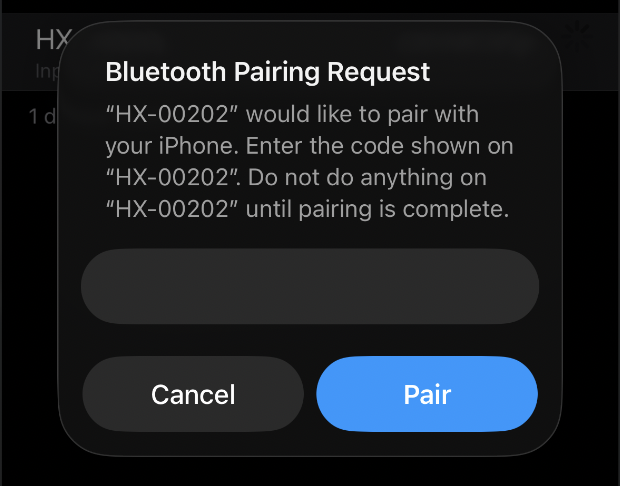
Fig. 9.32 Enter the Passkey displayed on the H9.
Enter the Passkey on your iOS device and click the “Pair” button.
Your H9 Bluetooth device will now be connected to your iOS device. The Bluetooth LED on the H9 will illuminate blue to indicate it is connected to a host.
You can now send MIDI messages from your iOS device to the H9 using a MIDI control app.
9.5.3.1. iOS pairing tips
Eventide Control is only available for Mac/iPad.
If you turn your iOS device’s Bluetooth off, this will disconnect the Bluetooth connection and turn the H9’s Bluetooth off. Turn it on again in the H9’s Bluetooth menu to reconnect.
If you choose to “Forget” the iOS device your H9 is paired with, you must also remove the H9 Bluetooth device from the iOS Bluetooth settings before your H9 can reconnect. To do this, go to the Settings > Bluetooth, locate the H9 Bluetooth device, click the “i” icon, and select “Forget This Device”. After this, repeat the instructions to pair your H9 with the iOS device using the Bluetooth MIDI pairing app.
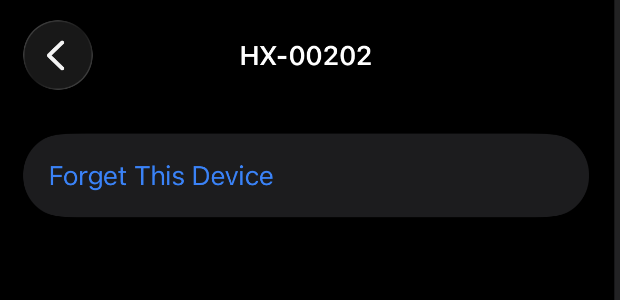
Fig. 9.33 “Forget” the H9 on your iOS device before pairing again.
9.5.4. Pairing your H9 to multiple devices
The H9 can pair with multiple host devices (Mac, iPad, iOS device, etc.) but it can only connect to one host device at a time.
Some host devices implement auto-connect behavior (i.e. iPad/iPhone/macOS 13+). When multiple paired devices are in range, the first one to auto-connect wins. This may not be desirable if one of your host devices is “stealing” the Bluetooth connection from the other device. This can be resolved in two ways:
Only pair your H9 with one host device at a time. When you want to switch to a new device, you should forget the H9 Bluetooth device and Host device from both ends.
Example: When you are not using your H9 with your Mac, forget the Mac on the H9 and forget the H9 Bluetooth device in the Mac’s Bluetooth settings. You can now pair your H9 with your iPad and the Mac Bluetooth connection will not interfere.
Turn Bluetooth off on any devices which you do not want your H9 to connect to. This allows you to stay paired with multiple host devices, but you must manually turn Bluetooth on/off for the device that you wish to connect to.
Example: When you are not using your H9 with your Mac, turn your Mac’s Bluetooth off so the Bluetooth connection will not interfere when you try to connect to your iPad. When you want to use your Mac again, turn the Mac’s Bluetooth back on, and turn Bluetooth off on your iPad.
9.5.5. Bluetooth System Requirements
Device must support Bluetooth LE 4.2+ to use Eventide Control. BLE 4.0+ will work for standard MIDI only. Earlier versions of Bluetooth/Bluetooth Classic will not work and are not supported.
iPads must run iPadOS 15 or later to use Eventide Control.
Macs must run macOS 11 (Big Sur) or later.
Some Macs running macOS 12 (Monterey) have known issues pairing with Bluetooth MIDI devices. If you are having trouble pairing your device on Monterey, updating to macOS 13 (Ventura) has been known to resolve these issues.