9.5. Bluetooth
注釈
Bluetooth機能を有効にするには、H9ソフトウェアのバージョン1.2以降が必要です。
H9は、Mac、iPad、iOSデバイスとBluetoothでペアリング・接続できます。これにより、Eventide Control(Mac/iPadのみ)に接続したり、DAWやサードパーティのMIDIコントロール・アプリ経由でMIDIメッセージを送信したりできます。
SelectボタンとPerformボタンを長押しして、H9のSystem Menuに入ってください。次に、Bluetoothメニューを探し、Bluetoothを有効にしてH9をペアリング・接続してください。
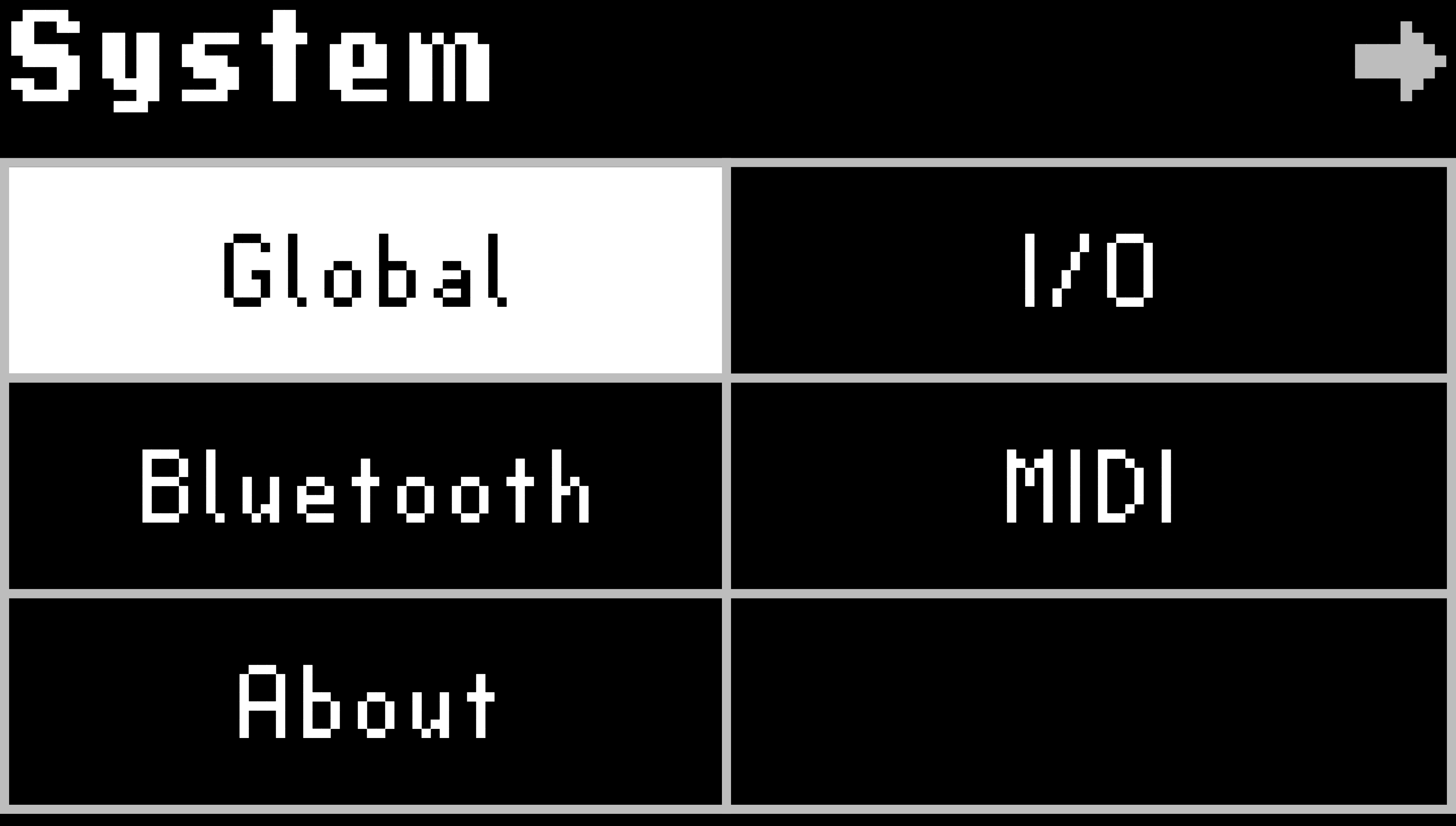
図 9.12 SelectボタンとPerformボタンを長押しして、H9のSystem Menuに入ってください。
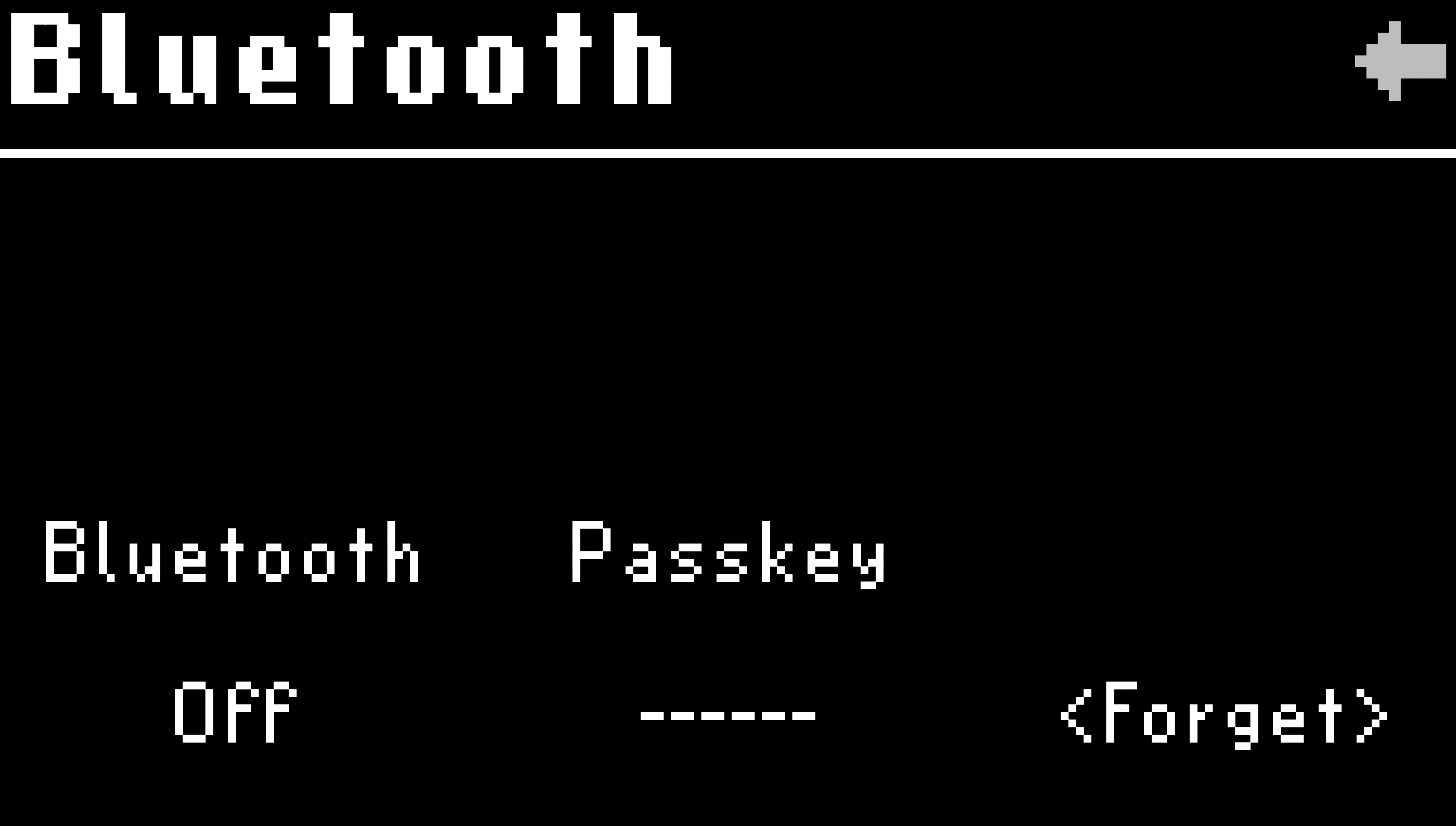
図 9.13 Bluetoothメニューに入り、H9のBluetoothを有効にしてください。
- Bluetoothのオン/オフ:
Quick Knob 1を回すと、H9のBluetoothアドバタイジングをオン/オフできます。これにより、Macコンピューターや iOSデバイスといったBluetoothホストデバイスとのペアリング・接続が可能になります。ペアリング準備ができているときはBluetooth LEDが青色に点滅し、接続されると青色に点灯します。Quick Knob 1を回すと、H9のBluetoothアドバタイジングをオン/オフできます。これにより、Macコンピューターやios デバイスといったBluetoothホストデバイスとのペアリング・接続が可能になります。オンのとき、左のBluetooth LEDが青色に点灯します。
- Passkey:
新しいホストデバイスとペアリングしている間、ペアリング用のパスキーが表示されます。
- デバイスを忘れる:
Quick Knob 3を押すか回すと、ペアリング済みのすべてのデバイスを忘れさせることができます。
Tip
H9上でホストデバイスを忘れさせた後は、ホストデバイス側のBluetooth設定からもH9のBluetoothデバイスを忘れさせる必要があります。その後、再度ペアリングの手順に従ってください。
Eventide Control接続のヒント:
H9は、接続方法(USBまたはBluetooth)に応じて、Eventide Control上に2つのデバイスとして表示されます。これは、デバイスの画像の下にある接続アイコンで示されます。
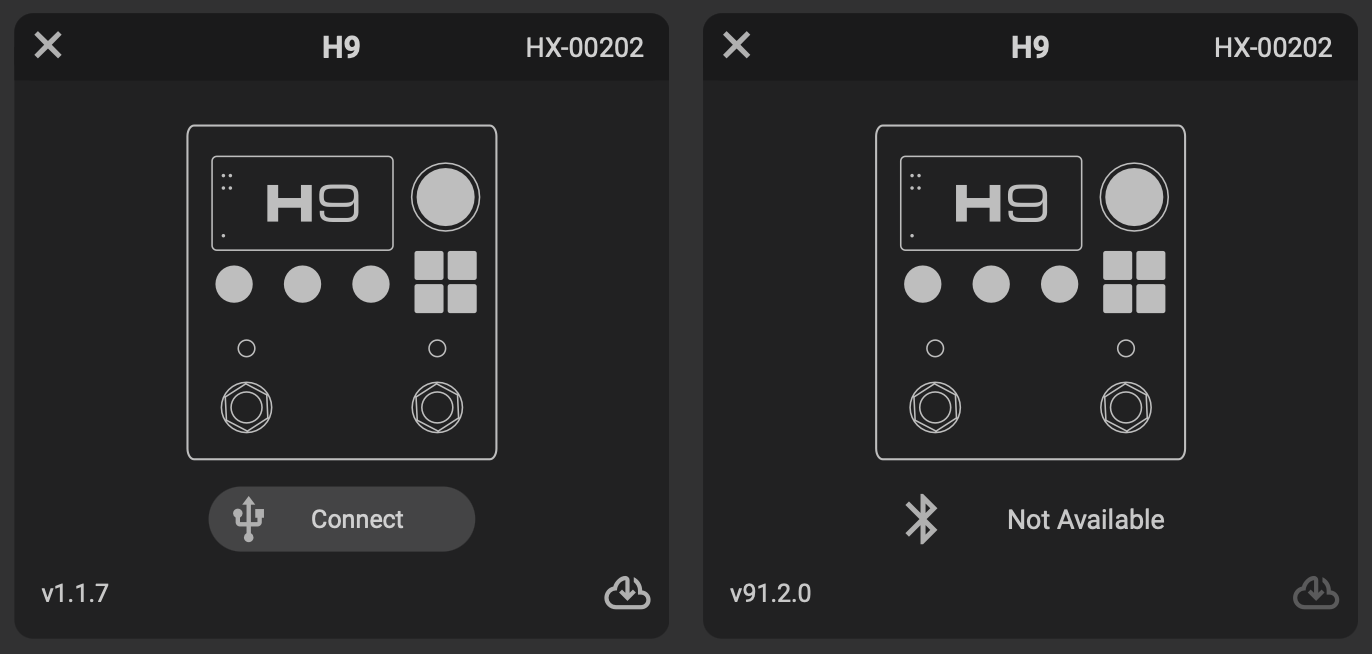
図 9.14 USBデバイスは左側に、Bluetoothデバイスは右側に表示されます。
H9はBluetooth経由ではアップデートできません。アップデートするにはUSB接続を使用する必要があります。アップデートするには、USBデバイスの右下にあるクラウドのアイコンをクリックしてください。
BluetoothとUSBの両方で、Eventide Controlを実行している複数のデバイスにH9を同時に接続しないでください。
9.5.1. macOS接続
Quick Knob 1を回して、H9のBluetoothをオンにします。
Bluetooth LEDが青色に点滅し、ペアリング準備ができていることを示します。
Eventide Controlを開き、Bluetoothペアリング・ボタンをクリックしてください。これにより、macOSのBluetooth設定メニューが開きます。
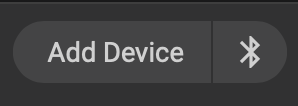
図 9.15 Bluetoothアイコンをクリックして、H9とMacをペアリングしてください。
Bluetooth設定メニューでH9を探し、「Connect」ボタンをクリックしてください。
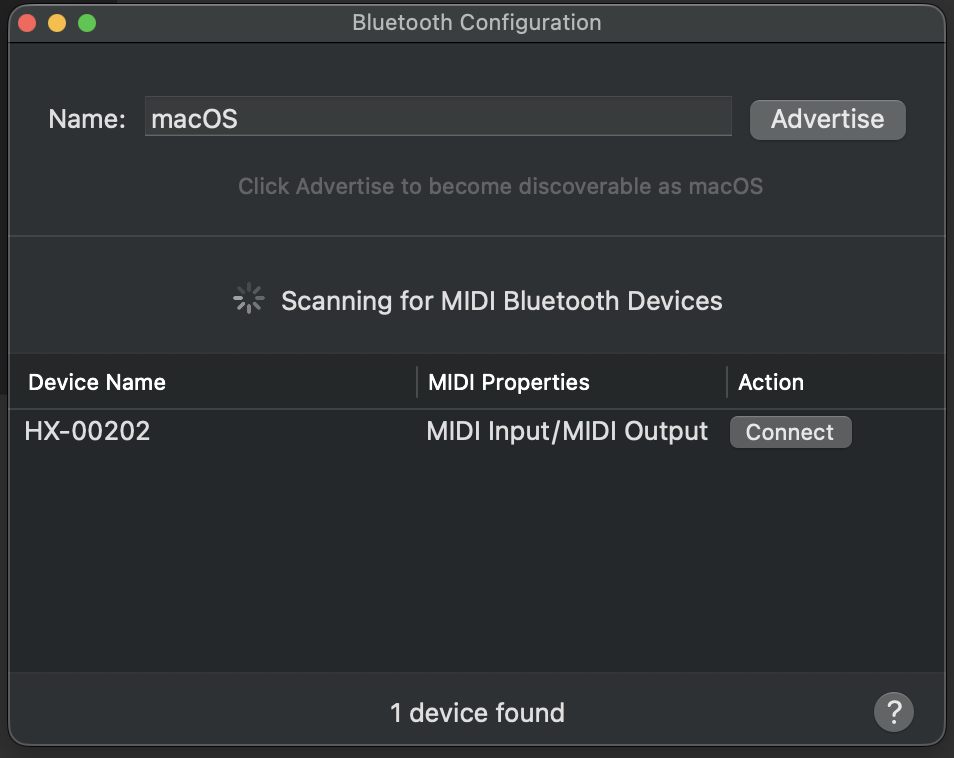
図 9.16 「Connect」ボタンをクリックしてください。
これで、H9のBluetoothメニューのPasskeyに表示されている6桁のコードを入力するよう案内されます。Macでこのパスキーを入力し、「Connect」ボタンをクリックしてください。H9がコンピューターと正常にペアリングされるはずです。H9のBluetooth LEDが青色に点灯し、ホストへの接続を示します。これで、H9のBluetoothメニューのPasskeyに表示されている6桁のコードを入力するよう案内されます。Macでこのパスキーを入力し、「Connect」ボタンをクリックしてください。H9がコンピューターと正常にペアリングされるはずです。H9のBluetooth LEDが青色に点灯し、ホストへの接続を示します。
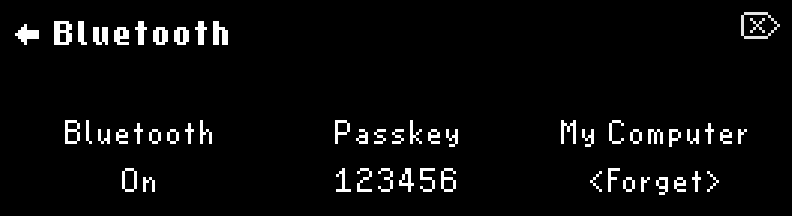
図 9.17 パスキーがH9に表示されます。
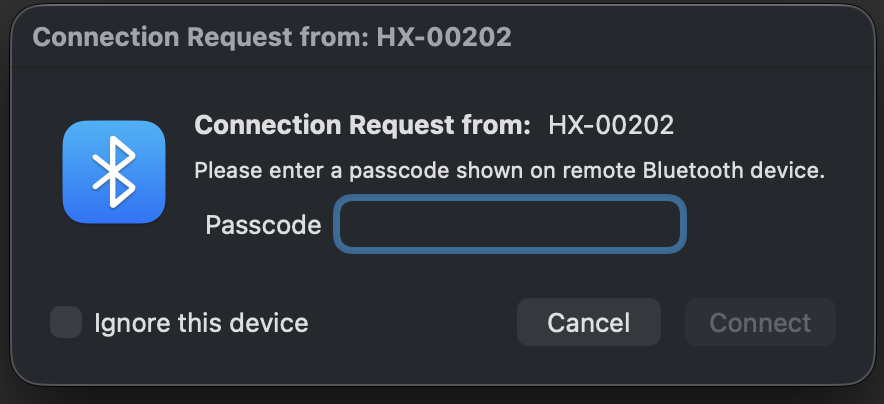
図 9.18 デバイスとペアリングするには、6桁のコードを入力してください。
Eventide Controlで「Add Device」をクリックし、続けて「Select Port」をクリックしてください。
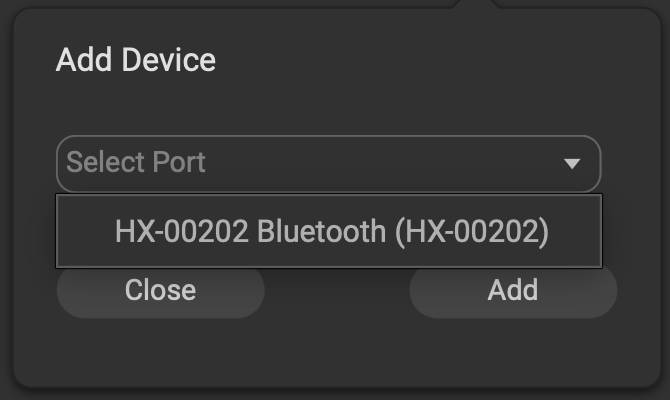
図 9.19 H9のBluetoothデバイスを選択して追加してください。
H9のBluetoothデバイスを選択し、「Add」をクリックしてください。
これで、H9とEventide ControlをBluetooth経由で接続できるようになります。
さらに、H9のBluetoothデバイスは、お使いのDAWでMIDIデバイスとしても使用できるようになります。
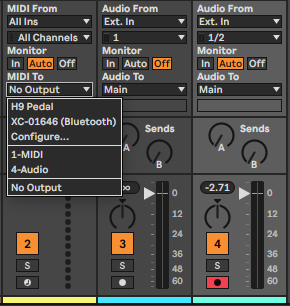
図 9.20 H9のBluetoothデバイスが、Ableton Liveで使用できるようになっています。
9.5.1.1. macOSペアリングのヒント
MacのBluetoothをオフにしたり、Bluetooth設定メニューからH9を切断したりすると、Bluetooth接続が切れ、H9のBluetoothもオフになります。再接続するには、H9のBluetoothメニューで再度オンにしてください。
H9がペアリングされているMacを「忘れる」場合は、MacのBluetooth設定からもH9のBluetoothデバイスを削除する必要があります。これを行わないと、H9を再接続できません。これを行うには、Macの「System Settings > Bluetooth」メニューに移動し、H9のBluetoothデバイスを探して右クリックし、「Forget」を選択してください。その後、Eventide Controlを使用したペアリング手順を再度行ってください。
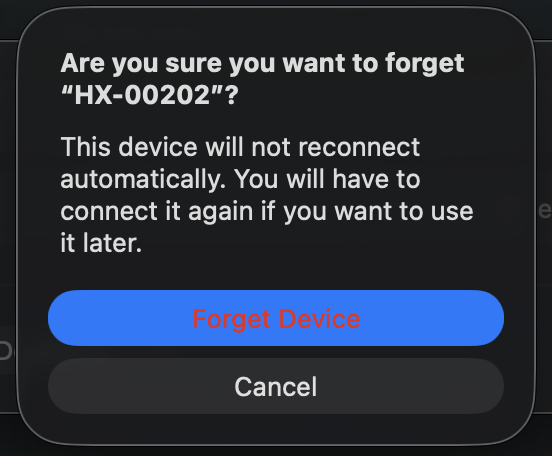
図 9.21 再度ペアリングする前に、MacのBluetooth設定からH9を削除してください。
OSのバージョンによっては、Eventide Controlで使用できるようにするためにH9を手動で再接続する必要がある場合とない場合があります。デバイスが「Not Available」と表示されている場合は、これが該当します。再接続が必要な場合は、Eventide Controlで Bluetoothボタンをクリックし、デバイス上で「Connect」を押してください。これにより、接続後にデバイスが使用できるようになるはずです。
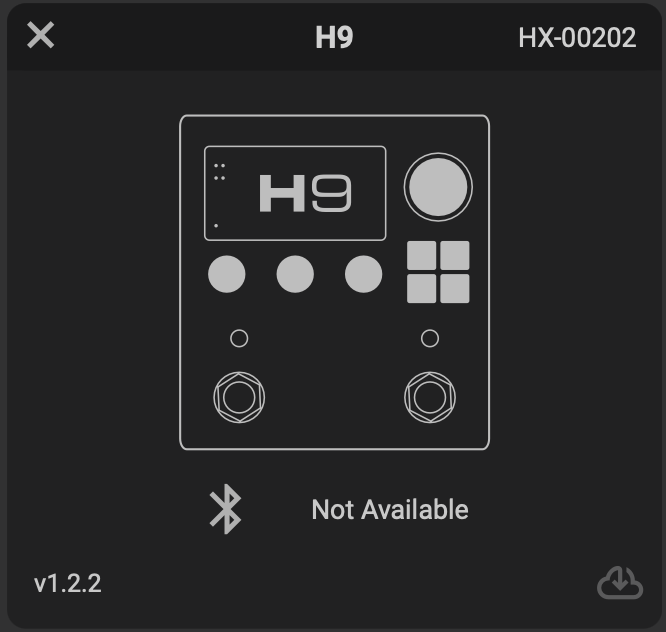
図 9.22 このデバイスは使用できません。再接続が必要です。
図 9.23 「Connect」をクリックすると、デバイスがEventide Controlで使用できるようになります。
9.5.2. iPad接続
Eventide Controlを開き、右上のBluetoothアイコンをクリックして、H9のペアリングを開始してください。
図 9.24 Bluetoothアイコンをクリックして、H9とiPadをペアリングしてください。
iPadのBluetooth MIDI Devicesメニューから、H9を選択してください。
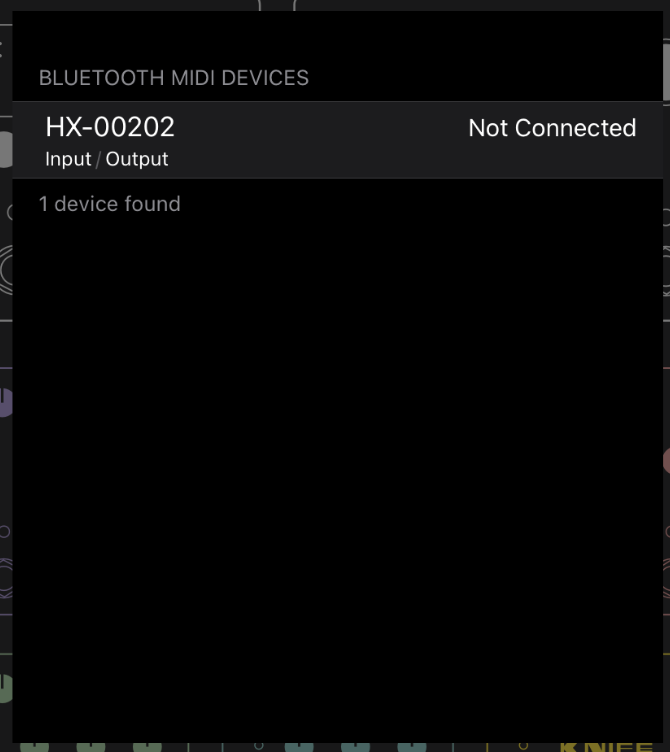
図 9.25 H9を選択して、ペアリング処理を開始してください。
H9のBluetoothメニューのPasskeyに表示されている6桁のコードを入力するよう案内されます。
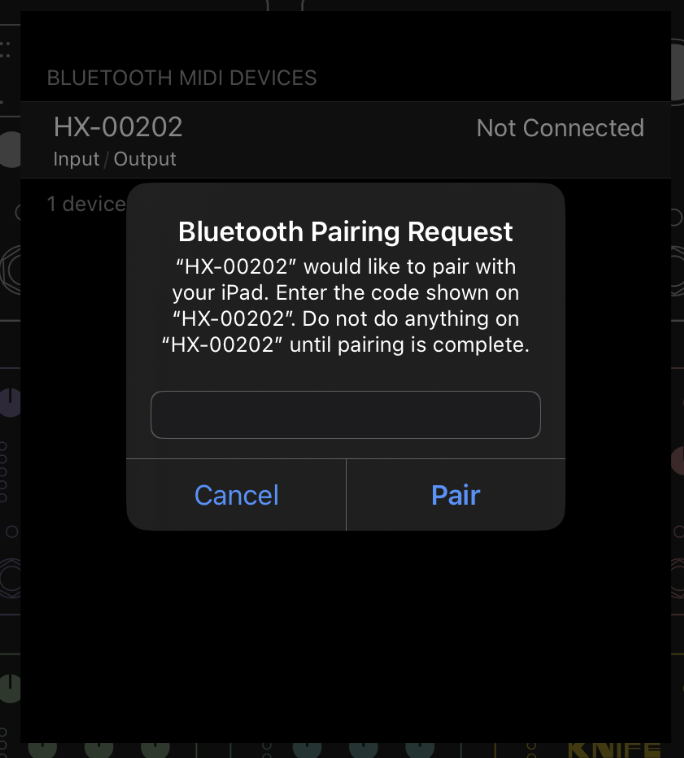
図 9.26 H9に表示されているパスキーを入力してください。
iOSデバイスでこのパスキーを入力し、「Pair」ボタンをクリックしてください。
Eventide Controlで「Add Device」をクリックし、続けて「Select Port」をクリックしてください。
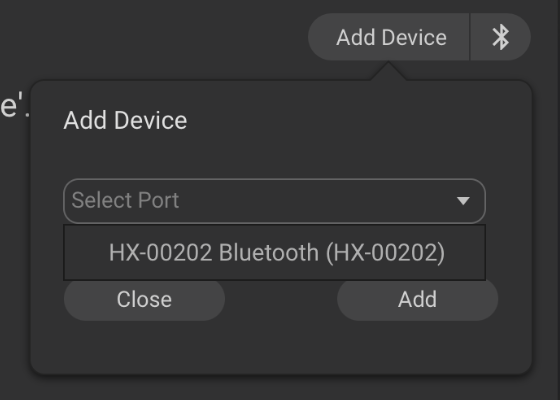
図 9.27 H9のBluetoothデバイスを選択して追加してください。
H9のBluetoothデバイスを選択し、「Add」をクリックしてください。
これで、H9のBluetoothデバイスがiPadに接続されます。H9のBluetooth LEDが青色に点灯し、ホストへの接続を示します。
これで、iPadとEventide Controlを使ってH9をコントロールできるようになります。
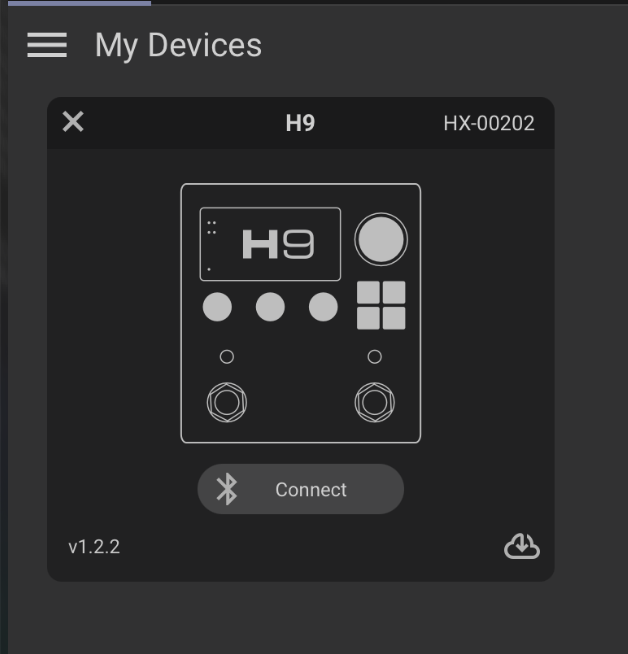
図 9.28 「Connect」をクリックして、H9とEventide Controlを接続してください。
さらに、H9のBluetoothデバイスは、お使いのDAWやMIDIコントロール・アプリでMIDIデバイスとしても使用できるようになります。
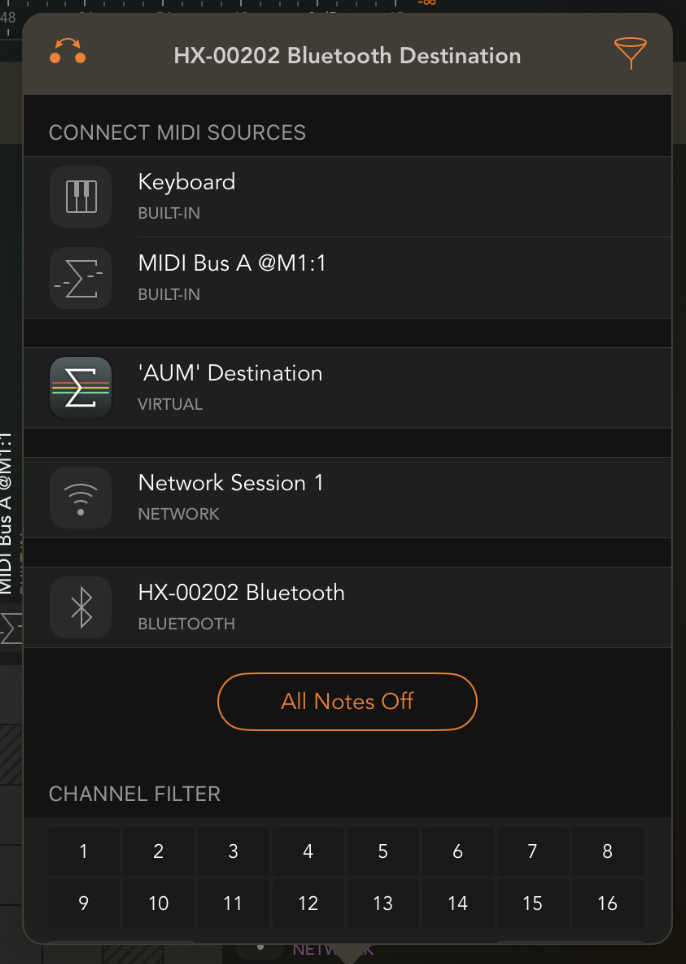
図 9.29 H9のBluetoothデバイスが、DAWで使用できるようになっています。
9.5.2.1. iPadペアリングのヒント
iPadのBluetoothをオフにすると、Bluetooth接続が切れ、H9のBluetoothもオフになります。再接続するには、H9のBluetoothメニューで再度オンにしてください。
H9がペアリングされているiPadを「忘れる」場合は、iPadのBluetooth設定からもH9のBluetoothデバイスを削除する必要があります。これを行わないと、H9を再接続できません。これを行うには、Settings > Bluetoothに移動し、H9のBluetoothデバイスを探して「i」アイコンをクリックし、「Forget This Device」を選択してください。その後、Eventide Controlを使用してH9をiPadとペアリングする手順を再度行ってください。
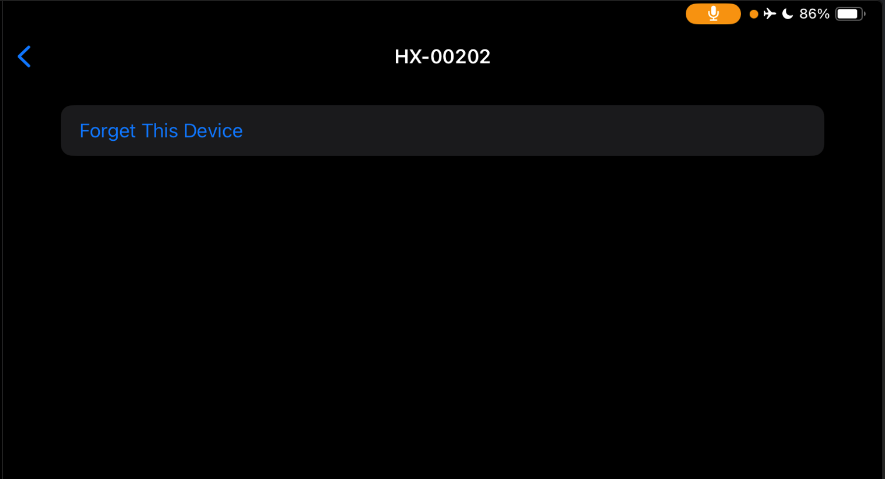
図 9.30 再度ペアリングする前に、iOSデバイス上でH9を「Forget」してください。
iPadを使ってH9をアップデートすることはできません。アップデートするには、USB接続を備えたコンピューターを使用する必要があります。
H9をiPadにUSBとBluetoothの両方で同時に接続することはできません。
9.5.3. iOS接続
H9をiOSデバイスとペアリングするには、サードパーティのBluetooth MIDIペアリング・アプリをダウンロードする必要があります。Korg - BLE MIDI をお勧めします。
Bluetooth MIDIペアリング・アプリを開いてください。H9が接続可能なデバイスとして表示されるはずです。
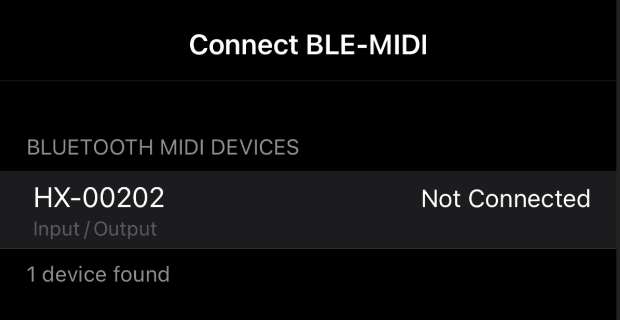
図 9.31 H9を選択して、iOSデバイスとペアリングしてください。
H9を選択すると、H9のBluetoothメニューのPasskeyに表示されている6桁のコードを入力するよう案内されます。
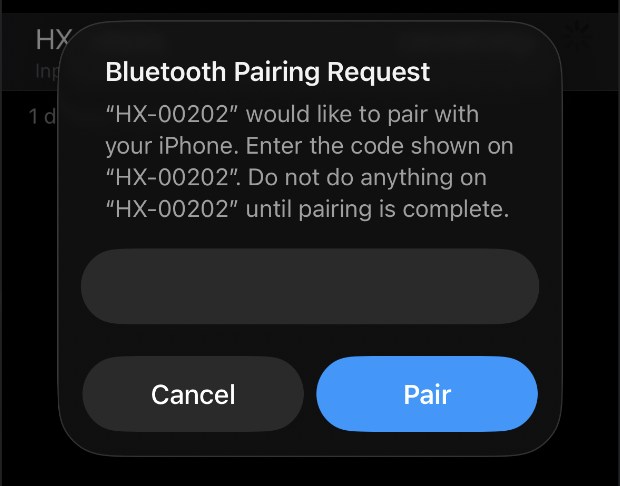
図 9.32 H9に表示されているパスキーを入力してください。
iOSデバイスでこのパスキーを入力し、「Pair」ボタンをクリックしてください。
これで、H9のBluetoothデバイスがiOSデバイスに接続されます。H9のBluetooth LEDが青色に点灯し、ホストへの接続を示します。
これで、MIDIコントロール・アプリを使って、iOSデバイスからH9にMIDIメッセージを送信できるようになります。
9.5.3.1. iOSペアリングのヒント
Eventide Controlは、Mac/iPadでのみ使用できます。
iOSデバイスのBluetoothをオフにすると、Bluetooth接続が切断され、H9のBluetoothもオフになります。再接続するには、H9のBluetoothメニューで再度オンにしてください。
H9がペアリングされているiOSデバイスを「忘れる」場合は、iOSのBluetooth設定からもH9のBluetoothデバイスを削除する必要があります。これを行わないと、H9を再接続できません。これを行うには、Settings > Bluetoothに移動し、H9のBluetoothデバイスを探して「i」アイコンをクリックし、「Forget This Device」を選択してください。その後、Bluetooth MIDIペアリング・アプリを使用してH9をiOSデバイスとペアリングする手順を再度行ってください。
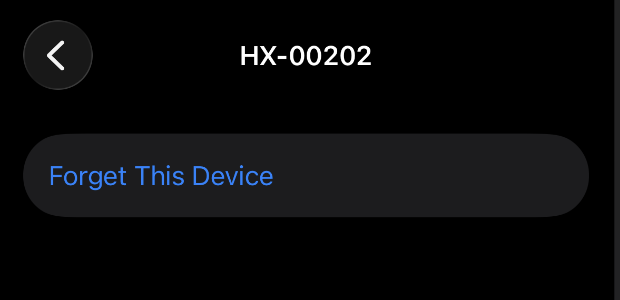
図 9.33 再度ペアリングする前に、iOSデバイス上でH9を「Forget」してください。
9.5.4. H9を複数のデバイスとペアリングする
H9は、複数のホストデバイス(Mac、iPad、iOSデバイスなど)とペアリングできますが、一度に接続できるホストデバイスは1台のみです。
一部のホストデバイスは自動接続の動作を実装しています(iPad/iPhone/macOS 13以降など)。複数のペアリング済みデバイスが範囲内にある場合、最初に自動接続したデバイスが優先されます。あるホストデバイスが他のデバイスからBluetooth接続を「奪って」しまう場合、これは望ましくないことがあります。これは以下の2つの方法で解決できます:
一度に1台のホストデバイスとのみH9をペアリングする。新しいデバイスに切り替えたい場合は、両端でH9のBluetoothデバイスとホストデバイスをそれぞれ忘れさせてください。
例:MacでH9を使用しない場合は、H9側でMacを忘れさせ、Mac側のBluetooth設定でH9のBluetoothデバイスを忘れさせてください。これで、Macとの Bluetooth接続が干渉することなく、H9をiPadとペアリングできるようになります。
H9を接続したくないデバイスでは、Bluetoothをオフにしてください。これにより、複数のホストデバイスとペアリングされた状態を維持できますが、接続したいデバイスのBluetoothは手動でオン/オフする必要があります。
例:MacでH9を使用しない場合は、MacのBluetoothをオフにしておくと、iPadへの接続を試みる際にBluetooth接続が干渉しません。再びMacを使用したい場合は、MacのBluetoothを再度オンにし、iPad側のBluetoothをオフにしてください。
9.5.5. Bluetoothシステム要件
Eventide Controlを使用するには、デバイスがBluetooth LE 4.2以降に対応している必要があります。BLE 4.0以降は、標準的なMIDIのみに対応します。それより古いバージョンのBluetooth/Bluetooth Classicは動作せず、サポートされていません。
Eventide Controlを使用するには、iPadはiPadOS 15以降を実行している必要があります。
Macは、macOS 11(Big Sur)以降を実行している必要があります。
macOS 12(Monterey)を実行している一部のMacでは、Bluetooth MIDIデバイスとのペアリングに既知の問題があります。Montereyでのペアリングに問題がある場合、macOS 13(Ventura)にアップデートすることで解決することが知られています。