10.2. Home Screen
Once you have opened logged into your Eventide account and registered your device, you will first see the Home screen.
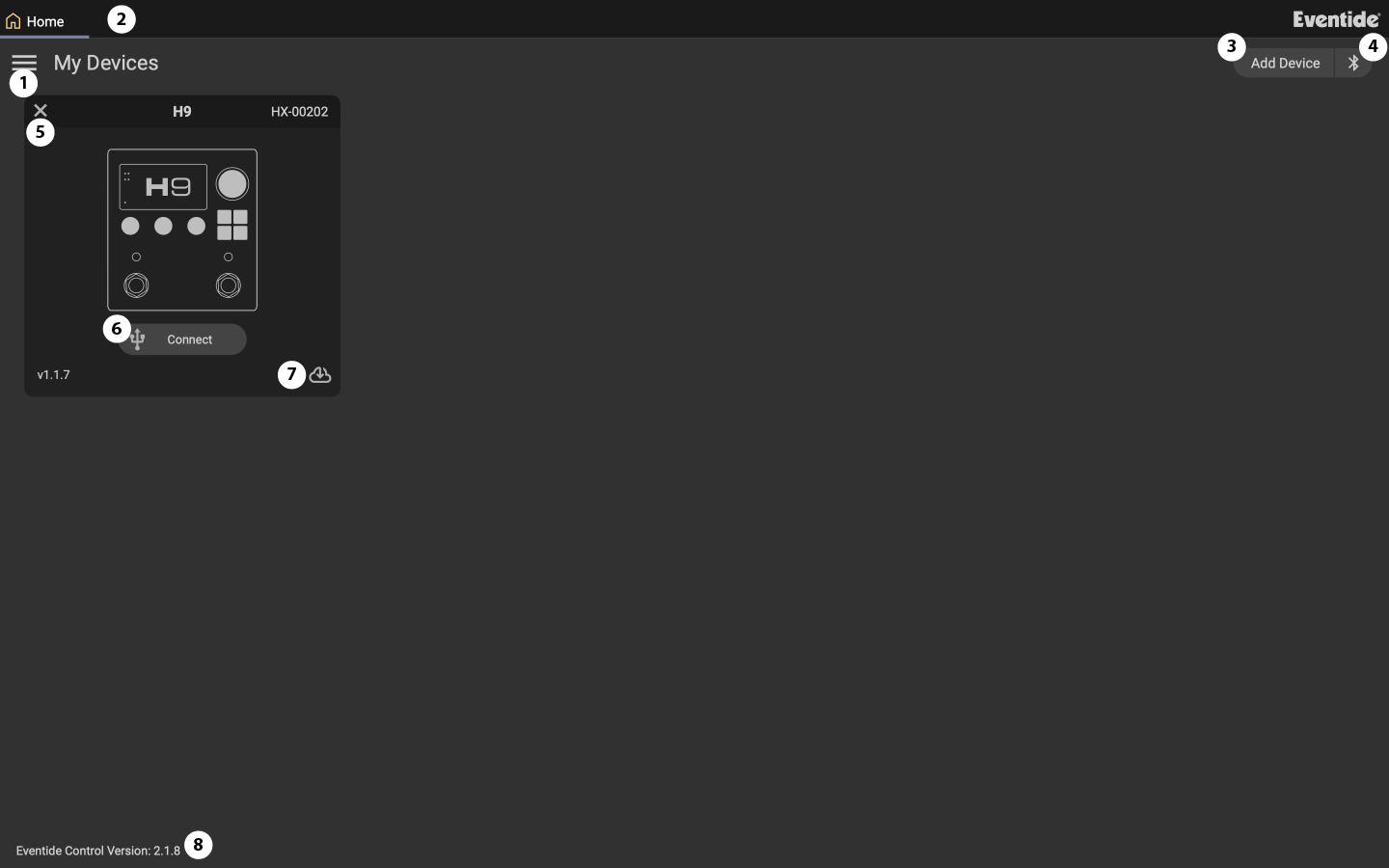
Fig. 10.3 The Eventide Control Home screen.
Click the burger icon for the following options:
Eventide Control settings
Logout of your Eventide account
View this user guide
Open the Eventide Control logfile for support purposes
Access Recovery Mode updates
Update your dot9 in Update Mode
View the About info for Eventide Control
Zoom In
Windows: control + =
Mac: command + =
Zoom Out
Windows: control + -
Mac: command + -
Reset Zoom
Windows: control + 0
Mac: command + 0
Once you have connected to a device, it will show up in the top bar. You can connect to multiple devices at once and select each device this way. Click the arrow icon to detach the device’s tab and view it in a separate window.
Click the Add Device button to add your H9 to the available devices.
Click the Bluetooth icon to begin the Bluetooth pairing process for the H9.
Click the X icon to remove a device.
Your device information can be seen here. Click “Connect” to start editing parameters. You can also view the devices’s serial number, software version, and whether it uses a USB or Bluetooth connection.
Click the cloud icon when an update is available for your device.
View what version of Eventide Control you are using here.
Eventide Control connection tips:
Your H9 will show up as two devices in Eventide Control depending on the connection method: USB or Bluetooth. This will be indicated by the connection icon below the device’s image.
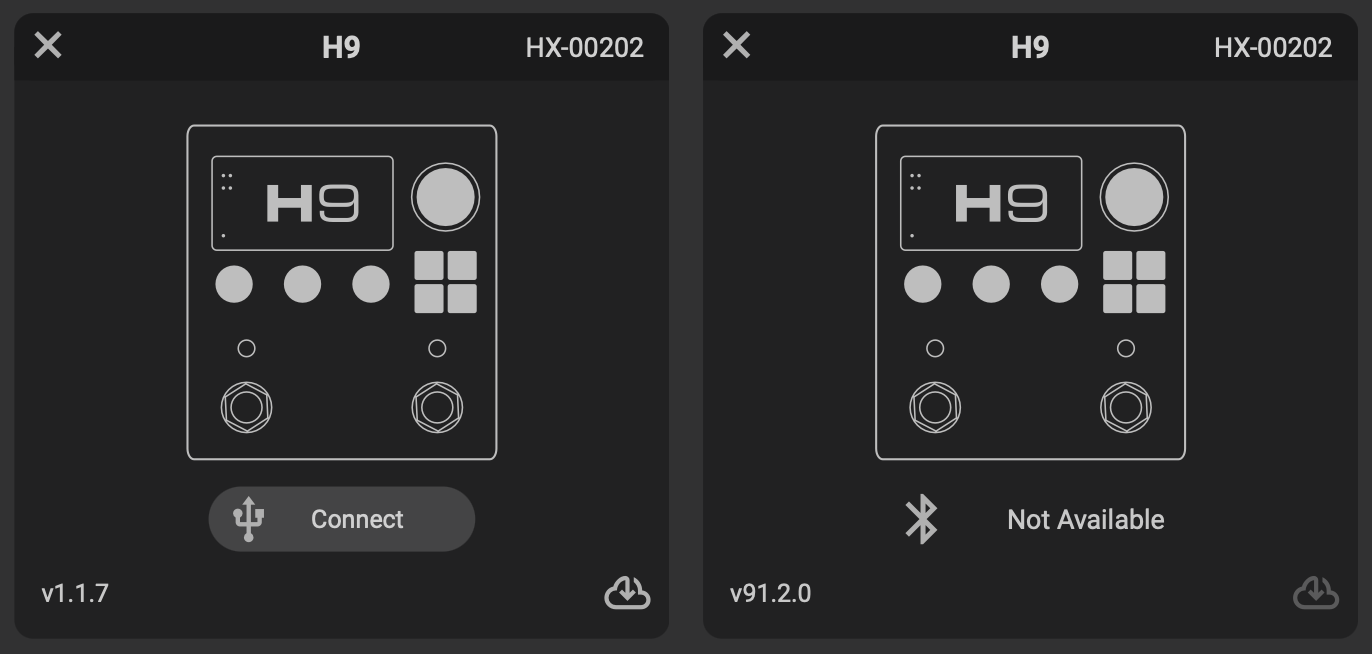
Fig. 10.4 The USB Device can be seen on the left, while the Bluetooth device can be seen on the right.
You cannot update your H9 via Bluetooth; you must use a USB connection to update. Click the cloud icon in the bottom right corner of the USB device to update.
Do not connect your H9 to multiple devices running H9 Control via Bluetooth and USB simultaneously.