10.1. Getting Started
Download and install Eventide Control.
When you first open Eventide Control you will need to sign into your Eventide account. Make sure you use your Eventide username, and not your email address, when signing in to avoid errors. You will remain signed into your Eventide account until you choose to logout.
Connect your H9 to your computer using the included USB-C cable and click the “Add Device” button in the top right corner.
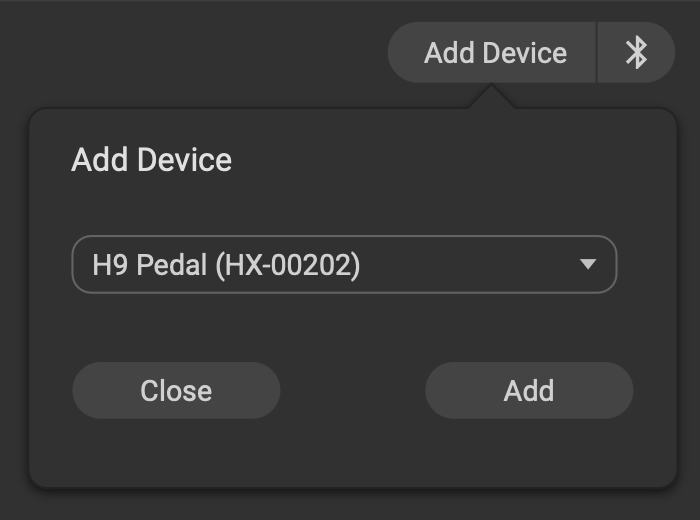
Fig. 10.2 Select your device from the dropdown menu.
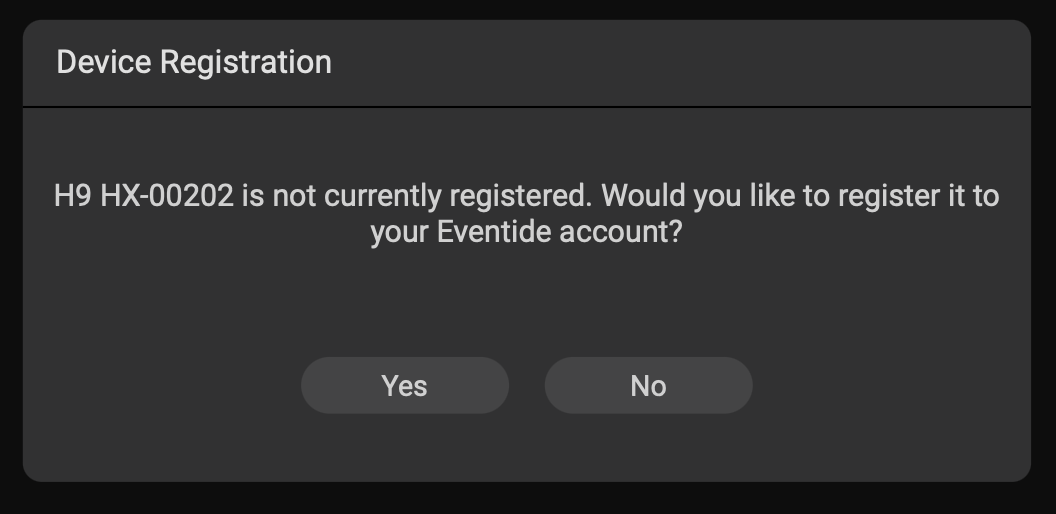
If you have not yet registered your device to your Eventide account, you will be prompted to register it in the app.
10.1.1. Connection
Eventide Control can connect to your devices in two ways:
All devices can connect via USB using the included USB cable.
The H90 and H9 can connect wirelessly using Bluetooth. Checkout the Bluetooth section of the user manual for instructions and troubleshooting.
Warning
When connecting to Eventide Control, we recommend only using the included USB cable, or USB cables that are compliant with the USB-C specification; using non-compliant cables can cause serious performance issues or damage your device.