2. Hardware
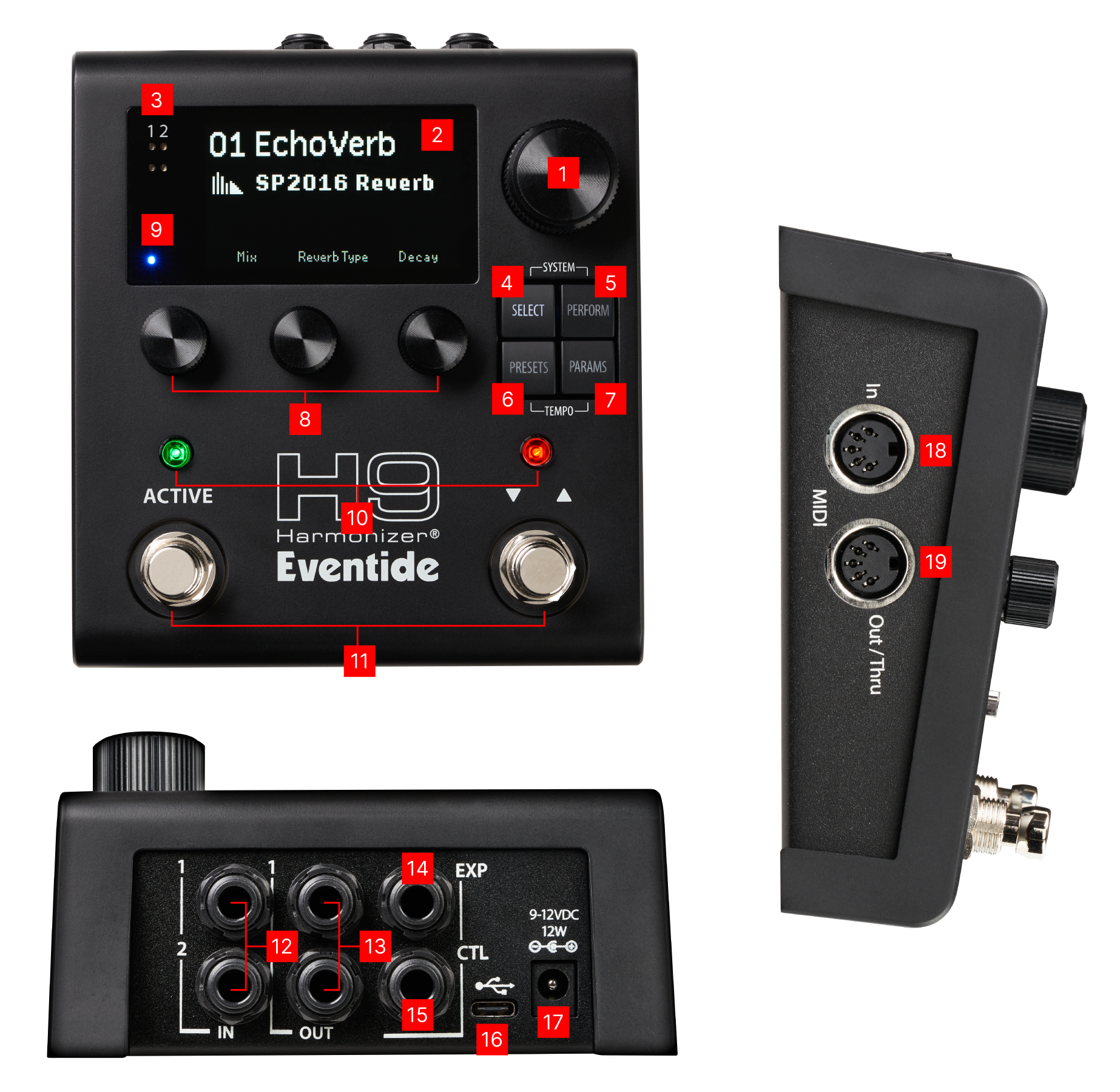
Fig. 2.1 H9 top, rear, and side connections.
Big Knob
Press the Big Knob to toggle between Select Mode and Perform Mode. The Big Knob is used for additional functions depending on the Play or Edit mode.
2.5” Display
Displays Play or Edit Mode information and System Settings.
Input Level Indicators
The bottom row of LEDs indicate signal presence for input channels 1-2. The top row indicates clipping. If your signal is overloading the H9’s inputs, adjust the output level of your device.
Select
Press the Select button to enter Select Mode. Press and hold the Select button to enter Bank Mode.
Perform
Press the Perform button to enter Perform.
Presets
Press to enter Preset Edit Mode and browse the Preset Library. Press and hold the Presets button to save a Preset.
Parameters
Press to enter Parameters Edit Mode to adjust Preset parameters.
Quick Knobs
Turn the three Quick Knobs to adjust parameters and settings.
Bluetooth
Bluetooth connection status LED.
LED Buttons
The LED buttons are contextual depending on the Play Mode.
Footswitches
Press the Footswitches to cue up and load Presets in Select/Bank Mode. Assign custom parameter mappings in Perform Mode.
Analog Inputs
Two ¼” mono tip/sleeve input jacks. Configurable to instrument or line level.
Analog Outputs
Two ¼” mono tip/sleeve output jacks. Configurable to instrument or line level.
Tip
If you’re not sure how to connect the H9’s inputs and outputs, visit the Quickstart guide for information about how to integrate the H9 into your rig.
EXP
¼” tip/ring/sleeve input jack for a external parameter mapping. Accepts the following:
10-25 K expression pedals.
0-5 V control voltages. Voltage source should be on the tip of the connected cable.
CTL
¼” tip/ring/sleeve input jack for 1-3 button auxiliary switches. Use momentary normally open switches.
USB-C
Connect to your computer for updates and Preset management via the Eventide Control app. Also used to receive MIDI over USB.
Warning
We recommend only using the included USB cable, or USB cables that are compliant with the USB-C specification; using non-compliant cables can cause serious performance issues or damage your device.
Power Input
Use the supplied 12V 1A power adapter to power your H9. Center positive (+), 5.5/2.5mm jack
MIDI DIN In
Connect MIDI devices to control the H9’s parameters, select Programs via PC messages, and sync to external MIDI clock sources.
MIDI DIN Out / Thru
Sync MIDI devices to the H9’s internal clock, or transmit PC messages and H9 controllers as CCs.